How to add a QR code to a photo
A QR code turns a photo into a doorway: scan the pancakes, open the menu. The app generates the code from any link or text you type, and places it on the photo like any other watermark — no separate QR tool needed.
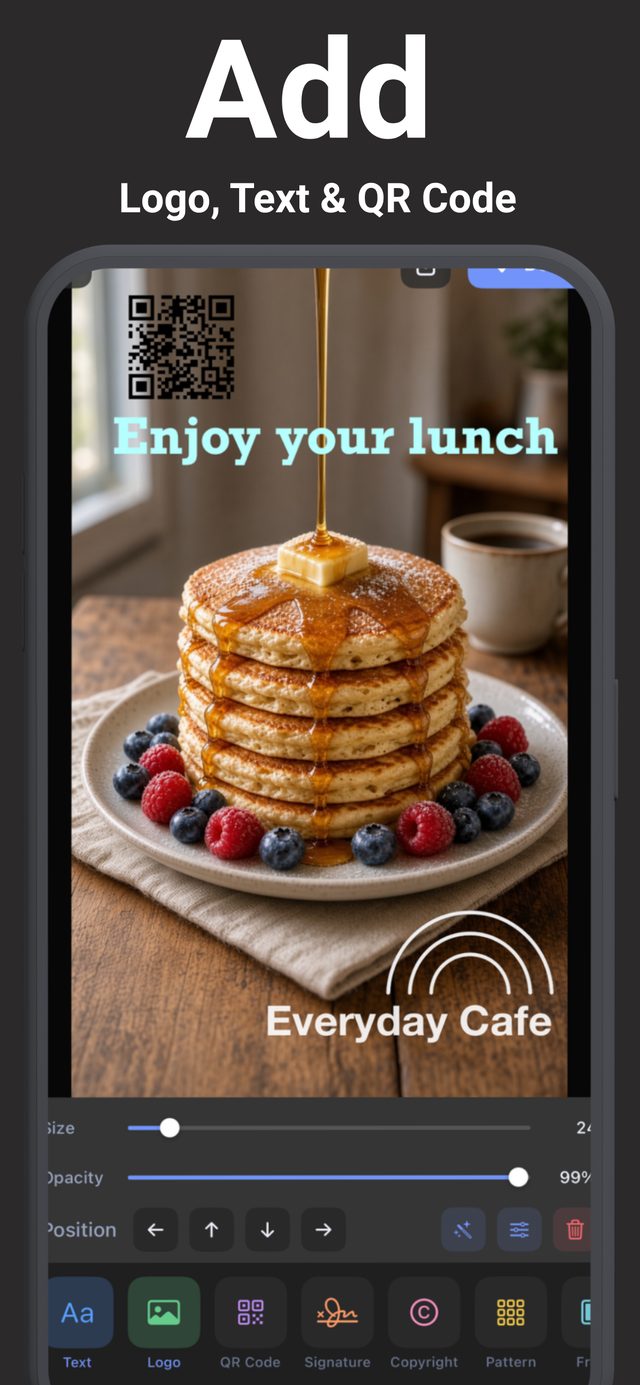
Generate or import — both work
The QR tool does two things. Generate: type any link or text — your website, a menu, a booking page, your social profile — and the app builds the QR code on the spot. Import: if you already have a QR code image (a payment code, for instance), bring it in and place it like a logo. You can even recolor a generated code to match your brand.
Step by step
- Pick your photo — a menu shot, a flyer background, a product photo, an event poster.
- Tap QR Code and choose Generate. Type the link or text you want people to reach.
- Place it in a calm area. QR codes need contrast to scan reliably — a busy background behind the code makes phones struggle. Corners over an even area work best.
- Size it generously. A code that's too small won't scan from across a table. If the photo will be printed or viewed at a distance, make the code bigger than feels natural on screen.
- Test it, then save. Point your own camera at the screen before exporting — a five-second check that saves reprinting a flyer.
What people put QR codes on
Cafés link food photos to their menu. Market stalls link product shots to their online store. Musicians link gig posters to ticket pages. Tutors and small businesses link flyers to booking forms. Combine the code with your logo and a line of text, and one photo becomes a complete mini-ad.
Try it on your own photos
Watermark & Signature Creator is free to download on iPhone and iPad, with a 3-day free trial for Pro. Everything runs on your device — photos are never uploaded.